



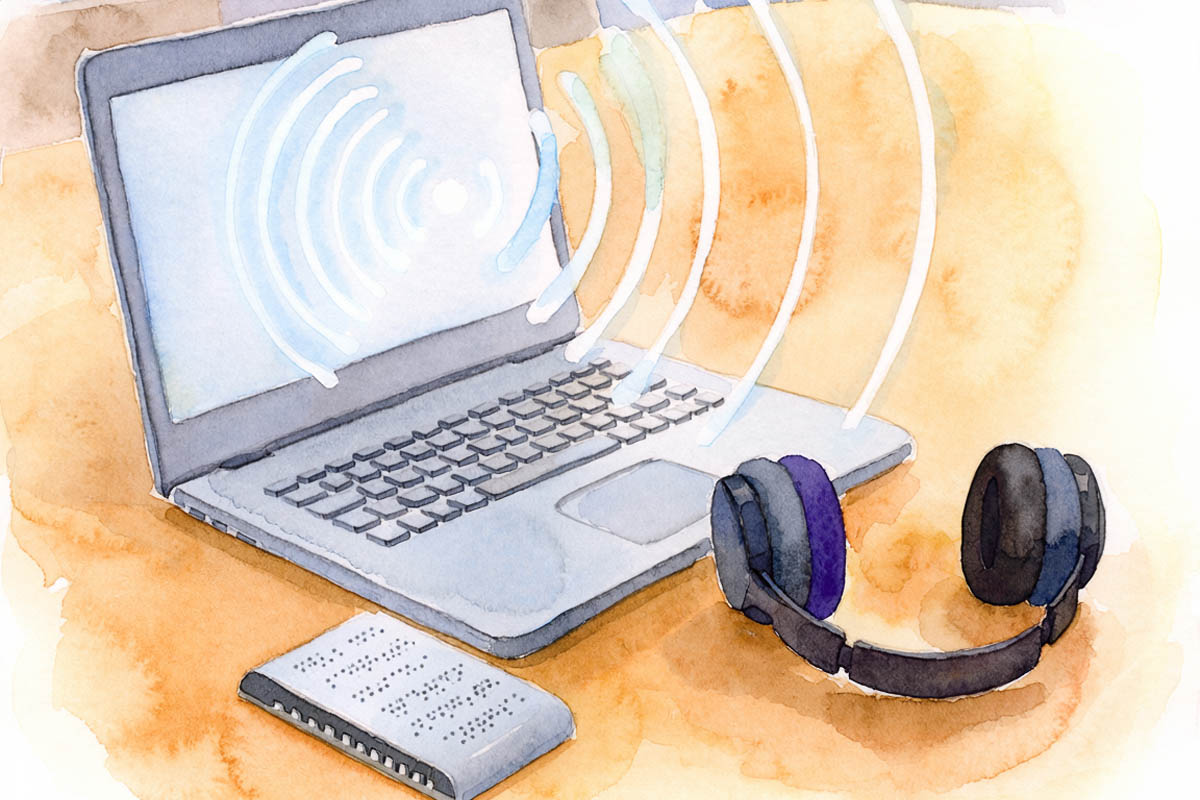
Screen reader testing means using your website the way a blind or low-vision visitor does: with the screen turned off in your mind, listening to a screen reader announce the page and driving it with the keyboard. It is the single most revealing accessibility test there is, because roughly two-thirds of the WCAG success criteria cannot be checked by an automated tool and most of those show up immediately when a screen reader hits them. You do not need to buy anything. VoiceOver is built into every Mac and iPhone, Narrator into Windows, and NVDA is free. This guide covers which screen reader to use, the handful of commands you need, a test script that takes about an hour for a typical site, and how to read what you hear.
Which screen reader to test with
- VoiceOver (macOS and iOS). Built in. Press Cmd+F5 on a Mac, or enable it under Settings, Accessibility on an iPhone. The most convenient option for most web teams, and iOS VoiceOver is the most-used mobile screen reader.
- NVDA (Windows). Free and open source from nvaccess.org, and the most widely used desktop screen reader in the WebAIM surveys alongside JAWS. If you test on only one desktop screen reader, make it NVDA with Chrome or Firefox.
- JAWS (Windows). Commercial, widely used in enterprise and government. Worth adding for a formal audit; not necessary for a first pass.
- Narrator (Windows). Built in (Win+Ctrl+Enter). Adequate for a quick check, less representative than NVDA.
- TalkBack (Android). Built in. Test with it if a meaningful share of your visitors are on Android.
Pair each screen reader with the browser its users favor: NVDA with Chrome or Firefox, VoiceOver with Safari, JAWS with Chrome. Screen readers and browsers interact, and a component can work in one pairing and fail in another.
The commands you actually need
Screen readers have hundreds of commands. For testing, ten will do.
| Action | VoiceOver (Mac) | NVDA (Windows) |
|---|---|---|
| Turn on / off | Cmd+F5 | Ctrl+Alt+N to start; Insert+Q to quit |
| Read next item | VO+Right Arrow (VO = Ctrl+Option) | Down Arrow |
| Stop speaking | Ctrl | Ctrl |
| Next heading | VO+Cmd+H | H |
| Next link | VO+Cmd+L | K |
| Next form field | VO+Cmd+J | F |
| Next landmark / region | Use the rotor (VO+U), choose Landmarks | D |
| List all headings / links / landmarks | Rotor: VO+U, then Left/Right to switch lists | Insert+F7 (elements list) |
| Activate link or button | VO+Space | Enter or Space |
| Read from here to end | VO+A | Insert+Down Arrow |
On iOS VoiceOver, swipe right to move to the next item, double-tap to activate, and use the rotor (rotate two fingers on the screen) to jump by headings, links or form controls.
Before you start
- Pick four or five pages that cover your templates: homepage, a service or product page, the contact page with its form, a blog post, and any page with a custom component (accordion, tabs, carousel, modal, filter).
- Pick every multi-step process: contact, sign-up, login, checkout, booking.
- Turn off any accessibility overlay so you test the site, not the widget.
- Open a document for notes. Record the page, what you did, what you heard, and what you expected to hear.
- Resist the urge to look at the screen while listening. If you must, dim it. The test is what the screen reader says.
The test script
1. Land on the page (2 minutes)
Load the homepage. Listen to the first things announced: the page title, then the first element. The title should say what the page and site are (“Raleigh Web Design, City of Oaks Marketing”), not “Home” or the URL. Press Tab once: you should hear a “Skip to main content” link. Activate it and confirm you land past the navigation. (WCAG 2.4.1, 2.4.2)
2. Read the heading list (5 minutes)
Open the headings list (rotor or Insert+F7). This is how screen reader users skim. You should hear one level-1 heading that names the page, then level-2 headings for each section, with level-3s nested underneath. Listen for: no H1, several H1s, jumps from H2 to H4, headings that are decorative (“Welcome!”) or missing where a section obviously starts, and headings that are actually bold paragraphs and therefore absent from the list. (1.3.1, 2.4.6)
3. Read the landmarks (2 minutes)
List the landmarks. You should hear banner (header), navigation, main, and contentinfo (footer), and ideally search. If “main” is missing, the page has no main element and a user cannot jump to content. If there are six navigation landmarks with no labels, they cannot be told apart. (1.3.1, 2.4.1)
4. Walk the navigation (5 minutes)
Tab into the main menu. Each item should be announced as a link (or a button if it opens a submenu), with a name that makes sense. Open a submenu with Enter or Space; you should hear that it expanded and be able to arrow or tab through its items and back out with Escape. Menus that only open on hover, or that announce “clickable” with no name, fail here. (2.1.1, 4.1.2)
5. Read the main content top to bottom (10 minutes)
Use “read from here” or step through item by item. Listen for: images announced with useful descriptions rather than file names or “image”; decorative images skipped entirely rather than announced as “image”; links whose text tells you where they go (“read our pricing guide” rather than “click here”); lists announced as lists with a count; tables announced with headers; and anything you see on screen that is never announced at all (icon buttons with no name, text rendered as an image, content injected by CSS). (1.1.1, 1.3.1, 2.4.4)
6. Complete the contact form (10 minutes)
Jump to the first form field. Each field should be announced with its label and type (“Email address, edit text, required”), not just “edit text.” Placeholder text alone does not count. Submit the form empty. You should hear an error announcement that identifies which fields are wrong and what to do; if the only feedback is a red outline, a screen reader user hears nothing. Fill it in correctly and submit; the confirmation should be announced. Repeat for every form and every step of every process. If a screen reader user cannot get through your contact form, nothing else on the site matters. (1.3.1, 3.3.1, 3.3.2, 3.3.3, 4.1.3)
7. Operate every custom component (10 minutes)
Accordions, tabs, carousels, modals, custom selects, date pickers, sliders, filter panels. For each: can you reach it with Tab? Is it announced with a role and a name (“Pricing, tab, 2 of 4, selected”)? Does Enter, Space or the arrow keys operate it? When a modal opens, does focus move into it, is it announced, does Escape close it, and does focus return to where you were? When content changes (a filter updates results), is the change announced? Components built from plain divs with click handlers fail every one of these. (2.1.1, 2.1.2, 2.4.3, 4.1.2, 4.1.3)
8. Check media (3 minutes)
Find any video or audio. It should be announced with a name, its controls should be reachable and labeled (play, pause, mute, captions), and nothing should autoplay with sound. (1.4.2, 2.2.2, 1.2.2)
9. Try the mobile version (10 minutes)
Repeat steps 1, 4 and 6 on an iPhone with VoiceOver. Mobile menus, hamburger buttons and touch targets fail differently from desktop, and iOS VoiceOver is the screen reader most of your real visitors use.
How to read what you heard
- “Clickable” or “group” with no name: an interactive element with no accessible name, usually an icon button or a div with a click handler. (4.1.2)
- “Image” followed by a file name: missing or meaningless alt text. (1.1.1)
- “Edit text” with no label: an unlabeled form field. (1.3.1, 3.3.2)
- “Link” with the text “read more” or “here”: link purpose not clear. (2.4.4)
- Silence after an action: a status change (error, success, updated results) that was never announced. (4.1.3)
- Focus jumps somewhere unexpected, or you cannot get out: focus management or a keyboard trap. (2.1.2, 2.4.3)
- You heard something the screen does not show, or vice versa: content injected or hidden incorrectly.
Record each finding with the page, the element, what was announced, what should have been, and the WCAG criterion. That list is the core of an accessibility audit report, and most of it will point at the theme rather than the content.
What screen reader testing does not cover
Contrast, text spacing, reflow at 320 pixels, target size, motion and flashing, and captions accuracy are visual or timing checks. Run them separately; the ADA compliance website checklist and the ten-check self-test cover them. And one screen reader on one browser is one data point; a formal audit tests at least two pairings plus mobile.
Frequently asked questions
Do I need to buy JAWS to test?
No. NVDA is free and represents a large share of desktop screen reader use; VoiceOver is built into Apple devices. JAWS is worth adding for a formal audit or if you sell to enterprise or government, where it is common.
How long does screen reader testing take?
About an hour for the script above on a typical business site, longer the first time while you learn the commands. A full audit tests every template and process across several screen reader and browser pairings and takes days.
Can automated tools replace screen reader testing?
No. Tools such as axe and WAVE find the failures that can be detected in code: missing alt attributes, unlabeled fields, contrast, heading order. They cannot tell whether a component works, whether a name is meaningful, whether focus behaves, or whether a process can be completed. Those are the failures that block real users, and only a person with a screen reader finds them.
Should I test with the accessibility overlay on or off?
Off. You are testing the site’s code, which is what an audit, a court and most screen reader users (many of whom block overlays) will encounter. If the site only works with the overlay on, it does not work.
Want it tested properly?
Our ADA compliance services test every template and process with NVDA, VoiceOver and JAWS as part of a full WCAG 2.2 AA audit, then fix what we find in the code.
or call 919-200-0201