


Microinteractions in Custom WordPress Themes: Drive Conversions with Code
How custom WordPress themes give you control over animations, hover states and feedback that lift conversions, with code examples you can use.

Your website visitors expect instant feedback. When they click a button, hover over an image, or scroll down the page, they want to feel that their action registered. Without these small responses, frustration builds and visitors leave.
Microinteractions—those subtle animations and state changes—are the difference between a website that feels responsive and one that feels dead. They improve click-through rates, increase time on page, and boost conversions. Better yet, when you build with custom WordPress themes, you have complete control over how these interactions work.
This guide covers why microinteractions matter for your business and shows developers exactly how to build them from scratch. I’ll also explain how microinteractions improve SEO, AI readability, and user experience.
Why Microinteractions Drive Business Results
The Psychology Behind Small Interactions
Our brains crave feedback. When you press a button and nothing happens, uncertainty creeps in. Did it work? Should I click again? This friction costs you conversions.
Microinteractions eliminate that doubt. A button that changes color on click, a form field that highlights when focused, or a smooth scroll animation—these tiny confirmations build confidence. Visitors feel in control, stay longer, and complete more actions.
Research from the Nielsen Norman Group confirms that well-designed microinteractions reduce cognitive load and improve user satisfaction. The numbers back this up. Sites with well-designed microinteractions see higher engagement and better conversion rates. Each small win compounds across your site.
Real Business Impact
- Reduced bounce rates: Visitors who feel confident navigate deeper instead of leaving
- Increased CTR: Clear hover states and button feedback drive more clicks
- Better form completion: Visual feedback on inputs reduces abandonment
- Improved trust: Polished interactions signal professionalism and quality
- Lower support requests: Confident users need less help
According to Google’s research on Core Web Vitals, user experience signals—including responsiveness—directly impact search rankings and conversion rates.
Microinteractions vs. Animations: Know the Difference
These terms get used interchangeably, but they’re not the same—and the distinction matters for your site’s performance.
Microinteractions respond to user actions. Click a button, and it responds. Hover over a link, and it changes. They’re behavioral—triggered by what visitors do.
Animations run independently. A loading spinner, a hero section that plays on page load, or a background that moves on its own. These add polish but don’t respond to user input.
Both belong on modern sites. But if resources are tight, prioritize microinteractions first. They directly impact conversion and user engagement.
How to Build Microinteractions in Custom WordPress Themes
The Developer’s Toolkit
Custom WordPress themes give you complete control. No page builder limitations, no plugin conflicts. You write the code, you own the behavior.
Here’s what you need:
- CSS Transitions handle simple state changes (color, size, opacity). Fast to implement, no JavaScript required.
- CSS Animations create more complex motion sequences. Define keyframes and let CSS handle the timing.
- JavaScript gives you full control over triggers, timing, and complex behaviors. Use vanilla JS or lightweight libraries like GSAP.
Simple Hover Effects with CSS
The easiest microinteraction is a button that responds to hover. Here’s how:
.cta-button {
  background-color: #0066cc;
  color: white;
  padding: 12px 24px;
  border: none;
  cursor: pointer;
  transition: all 0.3s ease;
}

.cta-button:hover {
  background-color: #0052a3;
  transform: translateY(-2px);
  box-shadow: 0 4px 12px rgba(0, 0, 0, 0.2);
}
The transition property smooths the change. Without it, the button snaps instantly. With it, the color, position, and shadow animate over 0.3 seconds. Visitors see the feedback immediately.
Form Field Focus States
Form fields need clear feedback when focused. This reduces abandonment and improves form completion rates:
input[type="text"],
input[type="email"],
textarea {
  border: 2px solid #ccc;
  padding: 10px;
  transition: border-color 0.2s ease, box-shadow 0.2s ease;
}

input[type="text"]:focus,
input[type="email"]:focus,
textarea:focus {
  outline: none;
  border-color: #0066cc;
  box-shadow: 0 0 0 3px rgba(0, 102, 204, 0.1);
}
When users click into a field, the border color changes and a subtle glow appears. They know the field is active and ready for input. This is especially important for accessibility and mobile users.
Scroll-Triggered Animations with JavaScript
For more complex interactions, use JavaScript. This example fades in elements as they scroll into view:
const observerOptions = {
  threshold: 0.1,
  rootMargin: '0px 0px -50px 0px'
};

const observer = new IntersectionObserver((entries) => {
  entries.forEach(entry => {
    if (entry.isIntersecting) {
      entry.target.classList.add('fade-in');
      observer.unobserve(entry.target);
    }
  });
}, observerOptions);

document.querySelectorAll('.animate-on-scroll').forEach(el => {
  observer.observe(el);
});
Pair this with CSS:
.animate-on-scroll {
  opacity: 0;
  transform: translateY(20px);
}

.fade-in {
  animation: fadeInUp 0.6s ease forwards;
}

@keyframes fadeInUp {
  to {
    opacity: 1;
    transform: translateY(0);
  }
}
Now elements fade in and slide up as visitors scroll past them. No plugin needed. This approach also improves Core Web Vitals by reducing layout shift.
Interactive Button with Click Feedback
Create a button that shows a ripple effect on click:
document.querySelectorAll('.ripple-button').forEach(button => {
  button.addEventListener('click', function(e) {
    const ripple = document.createElement('span');
    const rect = this.getBoundingClientRect();
    const size = Math.max(rect.width, rect.height);
    const x = e.clientX - rect.left - size / 2;
    const y = e.clientY - rect.top - size / 2;

    ripple.style.width = ripple.style.height = size + 'px';
    ripple.style.left = x + 'px';
    ripple.style.top = y + 'px';
    ripple.classList.add('ripple');

    this.appendChild(ripple);
  });
});
With CSS:
.ripple-button {
  position: relative;
  overflow: hidden;
}

.ripple {
  position: absolute;
  border-radius: 50%;
  background: rgba(255, 255, 255, 0.6);
  transform: scale(0);
  animation: ripple-animation 0.6s ease-out;
  pointer-events: none;
}

@keyframes ripple-animation {
  to {
    transform: scale(4);
    opacity: 0;
  }
}
When users click the button, a ripple expands from the click point. It’s satisfying and confirms the action registered.
Best Practices for Custom Theme Microinteractions
Keep timing consistent: Use 0.2–0.4 seconds for simple interactions, 0.6–1 second for complex animations. Faster feels snappier; slower feels sluggish.
Respect user preferences: Honor prefers-reduced-motion to avoid motion sickness and comply with accessibility standards:
@media (prefers-reduced-motion: reduce) {
  * {
    animation-duration: 0.01ms !important;
    animation-iteration-count: 1 !important;
    transition-duration: 0.01ms !important;
  }
}
Test on real devices: Mobile performance matters. Use Chrome DevTools to throttle and test.
Avoid overload: Not every element needs animation. Use microinteractions strategically on CTAs, forms, and key interactions. This also helps with page speed and Core Web Vitals.
Measure impact: Track how microinteractions affect bounce rate, time on page, and conversions. Use Google Analytics 4 to monitor behavior changes and user engagement.
For Business Leaders: Why Custom Themes Win
Page builders lock you into their ecosystem. You’re dependent on plugin updates, you pay recurring fees, and you can’t customize beyond what the builder allows.
Custom WordPress themes give you:
- Full control over every interaction and animation
- No plugin conflicts or update headaches
- Faster load times (no bloated page builder code)
- Better SEO (clean, semantic HTML)
- Ownership of your code and design
When you invest in custom WordPress development, you’re investing in a site that works exactly how you want it—and performs better because of it. Learn more about technical SEO and performance optimization.
Conclusion
Microinteractions are no longer a luxury. They’re expected. Visitors judge your site in seconds, and smooth, responsive interactions build confidence and drive conversions.
With custom WordPress themes, you have the power to build exactly the interactions your business needs. Start with simple hover effects, add scroll animations, and layer in complex interactions as your site grows.
Every click counts. Make them count.
Ready to build a high-performance WordPress site with expert microinteractions? Book a discovery call with Alison Iddings at City of Oaks Marketing to discuss your project.
Microinteractions FAQs
What’s the difference between microinteractions and animations?
Microinteractions respond to user actions (hover, click, focus), while animations run independently. Both improve UX, but microinteractions directly impact conversions.
Do microinteractions affect SEO?
Yes. Microinteractions improve user engagement metrics (time on page, bounce rate, CTR), which are ranking signals. They also improve Core Web Vitals when built efficiently.
Can I add microinteractions to a page builder site?
Page builders limit customization. Custom WordPress themes give you full control over microinteractions without plugin conflicts or performance penalties.
How do I ensure microinteractions don’t slow down my site?
Use CSS transitions and animations first (they’re GPU-accelerated). For JavaScript, use the Intersection Observer API (like the scroll example above) for efficient triggering. Test with Chrome DevTools.
Are microinteractions accessible?
Yes, when built correctly. Always respect prefers-reduced-motion, use semantic HTML, and test with screen readers. Microinteractions should enhance, not replace, clear UI.
More Insights for the Web
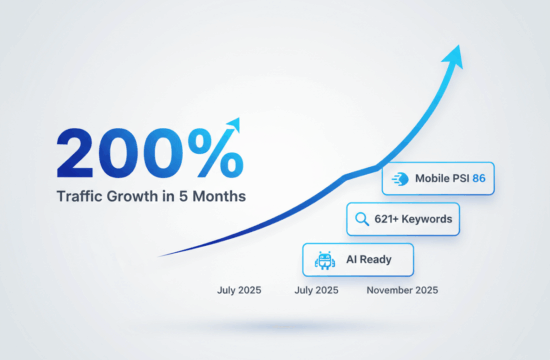
How AI-Ready Architecture Delivered 200% Traffic Growth in 5 Months: TBG Homes Case Study
How AI-ready architecture, custom WordPress and technical SEO delivered 200% organic growth and 621+ keyword rankings for TBG Homes in...
Read article
Winning the consensus layer: the new SEO battleground
Ranking #1 isn’t enough. Learn how the “consensus layer” works and how to earn AI mentions with clarity, diversity and...
Read article
Why AI LLMs Prefer Fast, Well-Optimized Websites (And What That Means for Your Business)
AI systems like ChatGPT and Perplexity cite fast, well-optimized websites more often. Learn why website performance impacts AI visibility and...
Read article